iPhone Battery Not Charging? 8 Easy Fixes That Work
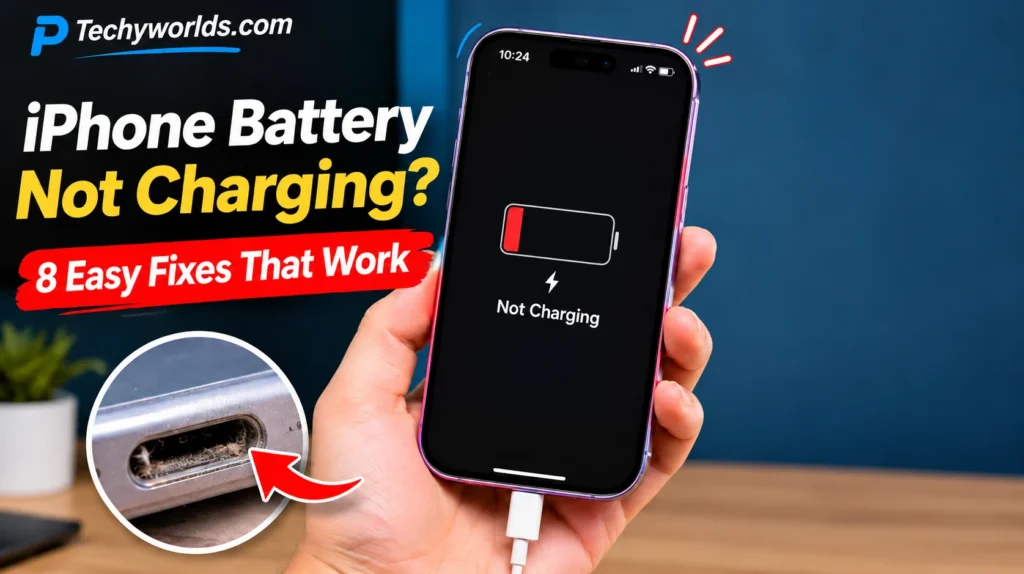
You plug in your charger, wait a few seconds, and nothing happens. There’s no lightning bolt on the battery icon, no charging sound, no glow on the Lock screen, and the battery percentage hasn’t moved even after ten minutes. Maybe you’re at 3% with a meeting in an hour, or maybe the phone charged fine last night and has simply stopped this morning. If your iPhone battery not charging problem has left you stuck with a dying phone, don’t panic: in most cases the cause is a dirty charging port, a worn cable, a weak adapter, extreme heat or a temporary software glitch, and not a dead battery. The good news is that you can usually fix it at home in a few minutes, without paying for a repair, by testing each part of the charging chain in the right order.
Table of Contents
- How iPhone Charging Works
- Why Your iPhone Battery Is Not Charging: 8 Causes
- 8 Steps to Fix iPhone Battery Not Charging
- Every Charging Method Compared
- iPhone Not Charging Wirelessly
- iPhone Stops Charging at 80%
- “Accessory Not Supported” and Liquid Alerts
- iPhone Charging Very Slowly
- iPhone Not Charging After an Update
- Final Checklist
- When to Contact Apple
- FAQ
Before you assume the battery is dead, remember that an iPhone has several layers between the wall socket and the battery: the outlet, the adapter, the cable, the charging port, the iPhone’s own temperature protection and the software that manages charging. A fault in any one of them looks exactly like “the battery isn’t charging.” That’s why testing them one at a time, starting with the free and safe checks, usually finds the problem quickly.
Apple’s official guide, If your iPhone or iPod touch won’t charge, starts with the same basics: check the cable and adapter for damage, clear debris from the port, and let the phone charge for half an hour before judging it. This guide builds on that advice and covers what the official page doesn’t spell out in detail: how to tell which part is at fault, what the comparison between wired, wireless and computer charging looks like, and what to do in the most common special cases.
This guide covers how iPhone charging works, eight causes, eight fixes in order, a comparison table of charging methods, and scenarios for wireless charging not working, charging stopping at 80%, accessory and liquid alerts, slow charging, and charging problems after an update.
Quick answers: Nothing happens when plugged in: Try a different outlet, cable and adapter, then clean the port. Charges only at certain angles: Lint in the port or a worn cable. Stops at 80%: Usually Optimized Battery Charging, a charge limit or heat, and not a fault. Won’t wake the screen: Charge for 30 minutes, then force restart. Still dead: Book a diagnostic with Apple.
How iPhone Charging Works
When you connect a cable, the iPhone checks the power source, negotiates how much power it can safely accept, and only then starts filling the battery. If that handshake fails, the phone either charges very slowly or refuses to charge at all. That is a safety feature, not a bug.
The charging chain has five parts you can check:
The power source. A wall outlet gives the most reliable power. A computer USB port, a power strip, a car socket or a cheap multi-port hub may give too little power, or an unstable supply.
The adapter. Modern iPhones don’t ship with a power brick in the box in many regions, so people often use an old, low-power or uncertified one. Apple notes that some adapters don’t supply enough power to charge an iPhone.
The cable. Lightning and USB-C cables wear out where they bend, near the connector ends. A cable that looks fine can still have a broken wire inside.
The port. The charging port collects pocket lint and dust over months. A thin layer packed at the bottom can stop the connector from seating fully.
The iPhone itself. Software controls charging speed, temperature protection, Optimized Battery Charging and, on newer models, a user-set charge limit. A worn battery or a hardware fault can also stop charging.
Why Your iPhone Battery Is Not Charging: 8 Causes
1. A damaged or non-certified cable. Frayed, bent or very cheap cables are the most common cause.
2. A weak or faulty adapter. Some adapters, especially old ones made for other devices, don’t deliver enough power.
3. Dirt or lint in the charging port. The cable can’t seat fully, so contact is intermittent.
4. A bad outlet, power strip or USB port. The problem may be the power source, not the phone.
5. The iPhone is too hot or too cold. Apple says your iPhone will charge again when the temperature drops, so moving it and the charger to a cooler location helps.
6. Optimized Battery Charging or a charge limit. The phone may pause at 80% on purpose to protect the battery.
7. A software glitch. A frozen charging process can stop the phone from recognising power.
8. A worn battery or hardware fault. An old battery, a damaged port or liquid damage can stop charging entirely.
Read More: iPhone Won’t Turn On? Easy Fixes That Work
8 Steps to Fix iPhone Battery Not Charging
Work through these in order. Each step starts with the safest check, and nothing here erases data until the very end, where it’s clearly marked.
Step 1: Check the cable and adapter for damage.
Look for fraying, bent prongs, bent pins and loose connector ends
Check where the cable bends near each end
Look at the adapter for scorch marks or loose parts
Stop using any cable or adapter that looks damaged
Try a different cable that you know works with another device
Apple’s guide says to check your charging cable and USB adapter for signs of damage, like breakage or bent prongs, and not to use damaged accessories. A cable can fail internally while looking perfect, so swapping in a second cable is the quickest test.
Step 2: Change the power source and use a wall outlet.
Plug the adapter into a different wall outlet
Skip power strips and extension cords for now
Don't charge from a computer port or a wireless pad while testing
Try a different, recommended power adapter
Let the iPhone charge for at least half an hour
A computer USB port or loose power strip may not provide enough power. Apple says to charge with a compatible cable connected to a power adapter plugged into an electrical outlet. Give it time, because a deeply drained battery can take a while to show any sign of charging.
Step 3: Clean the charging port.
Unplug all cables and turn off the iPhone
Shine a torch into the port at the bottom of the phone
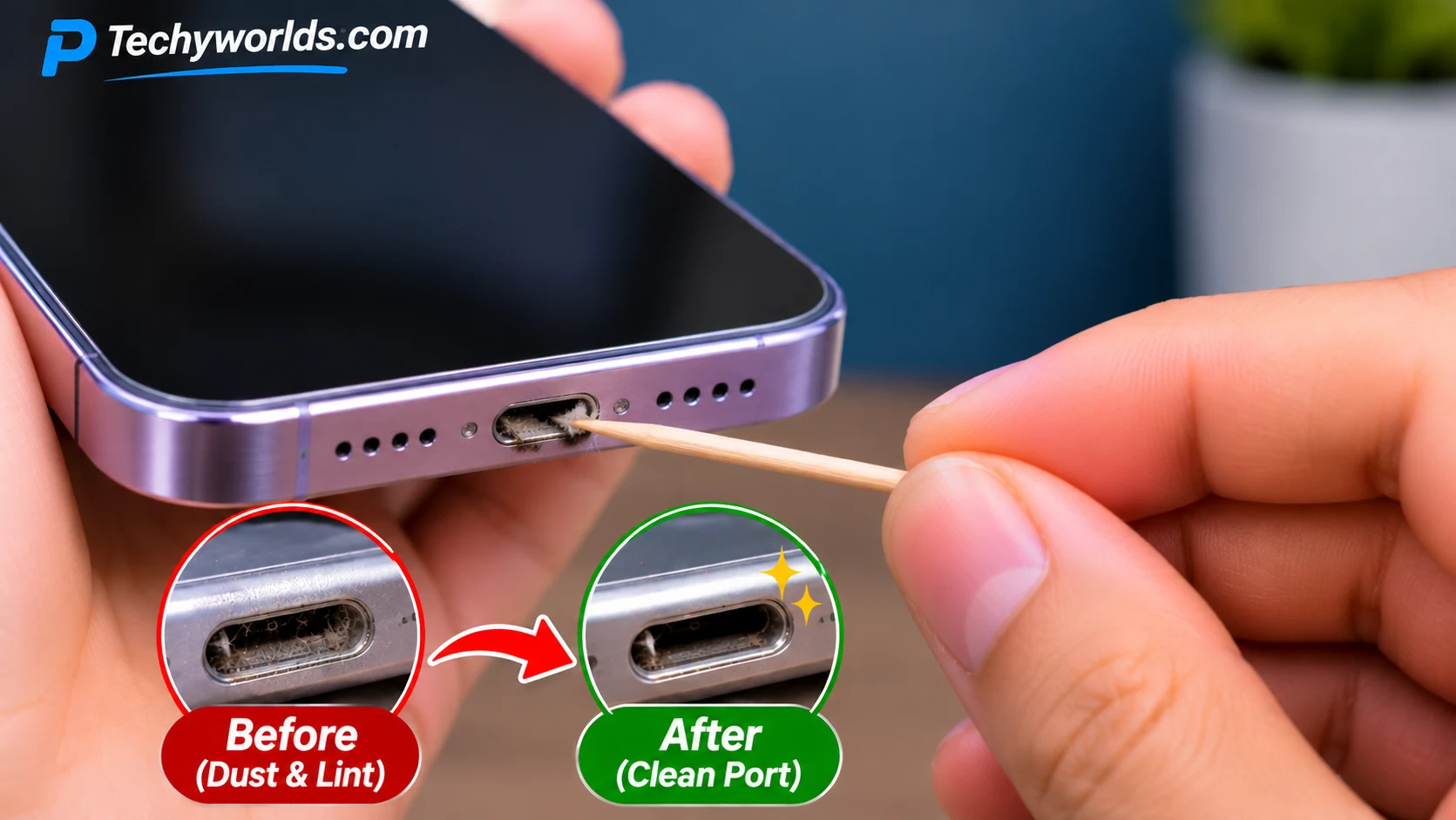
Gently clear lint with a clean, dry, soft wooden or plastic toothpick
Don't use metal tools, liquids or compressed air
Plug the cable in firmly and test again
Apple’s guide says to remove debris from the charging port, then plug the charging cable firmly into the device. Pocket lint compacts at the bottom of the port over time, and a gentle clean fixes a surprising number of “dead” iPhones. Be careful. The pins inside are delicate, and scraping them can cause damage.
Step 4: Let the iPhone cool down or warm up.
Remove the case
Move the iPhone and charger out of sun, a hot car or a cold room
Stop using the phone while it charges
Wait 15 to 30 minutes, then reconnect
Avoid putting it in a fridge or freezer
An iPhone protects its battery by pausing charging when it is too hot or too cold. If a warning about temperature appears, wait before trying again. If the phone often overheats while charging, our iPhone overheating guide covers what causes it.
Step 5: Force restart the iPhone.
Press and quickly release Volume Up
Press and quickly release Volume Down
Press and hold the Side button until the Apple logo appears
Connect it to power and wait a few minutes
Leave it charging for 30 minutes
A force restart clears a frozen process that may be blocking charging. It doesn’t erase your data. If the screen stays black but the phone seems to be charging, give it time before trying again.
Step 6: Check the battery health.
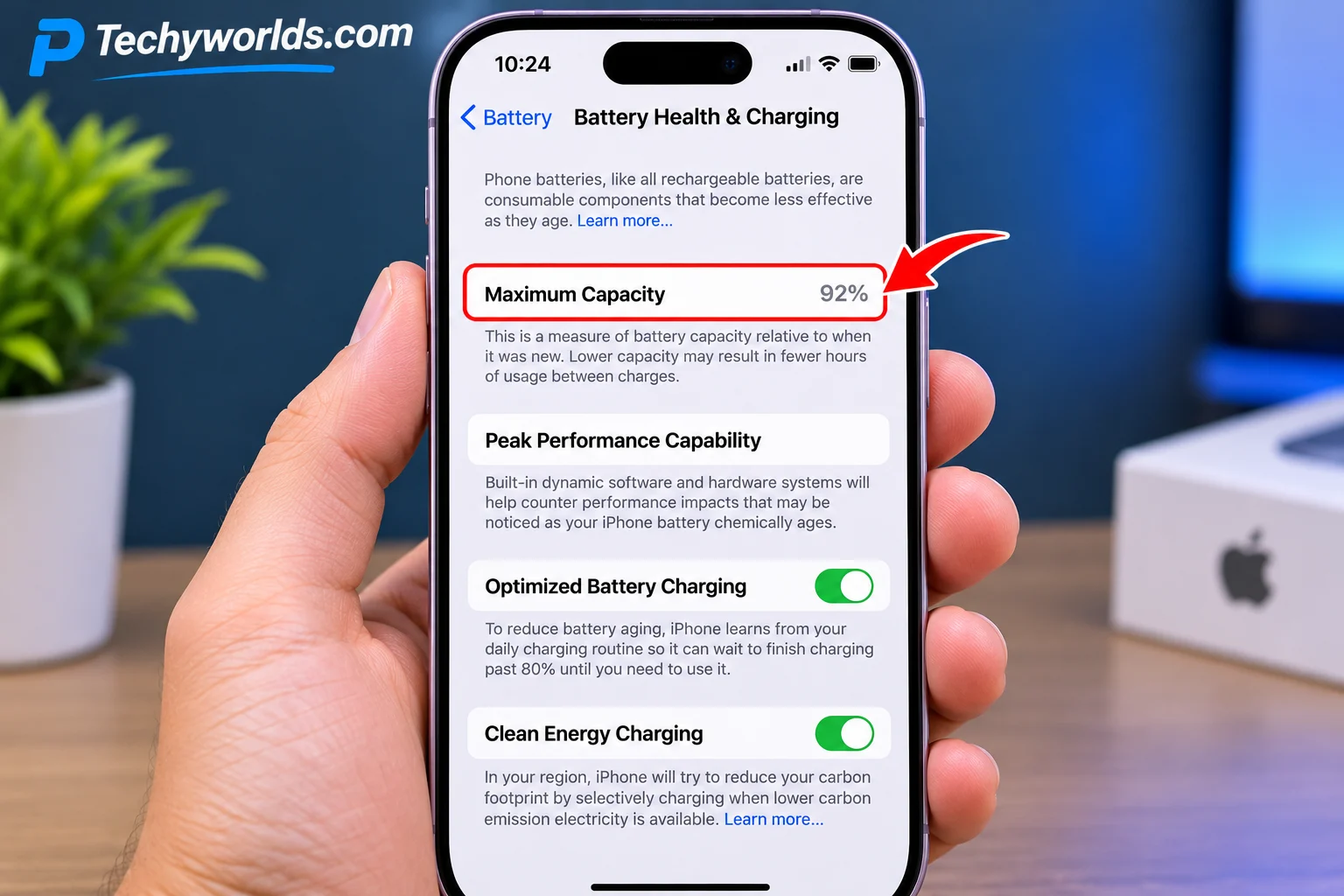
Settings > Battery > Battery Health & Charging
Check Maximum Capacity
Check any message about battery condition or service
Turn on Low Power Mode for the test if the battery is very low
Note the percentage for later
Apple’s battery guidance, iPhone battery and performance, explains what Maximum Capacity means. A battery that has lost a lot of capacity may drain very fast, shut down unexpectedly or struggle to charge. If your phone is a few years old and the capacity is low, a battery replacement may be the real fix. Our iPhone battery draining fast guide explains how to read these numbers.
Step 7: Update iOS and try another power adapter.
Settings > General > Software Update
Install the latest iOS, using Wi-Fi and enough battery
Try a certified adapter from Apple or a reputable brand
Test with the original cable if you still have it
Check again after 30 minutes of charging
Software updates fix charging bugs, and a certified adapter removes a major variable. If the phone is too low to update, charge it first, then update.
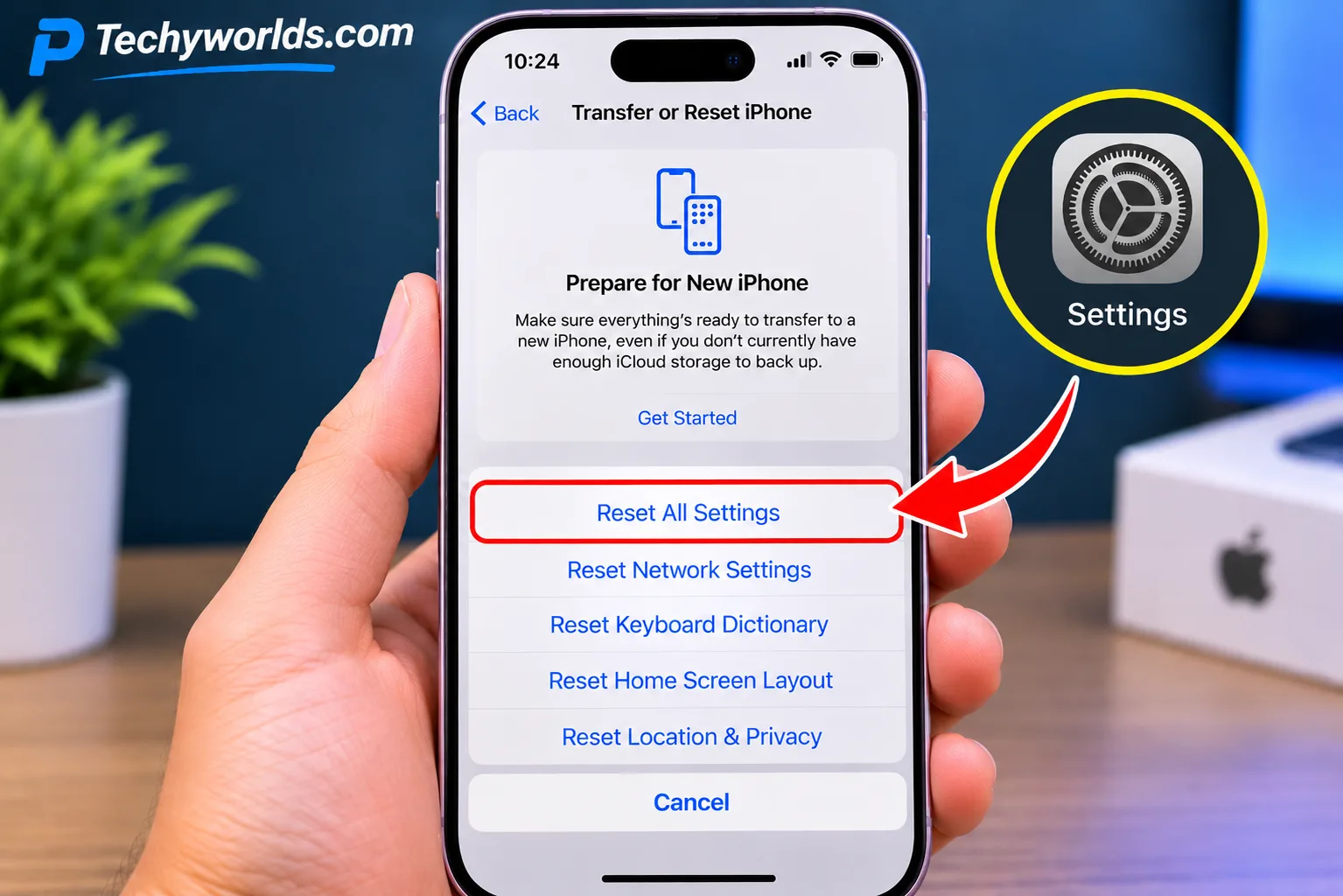
Step 8: Reset settings, as a last software step.
Back up your iPhone first
Settings > General > Transfer or Reset iPhone > Reset
Tap Reset All Settings (keeps your data, resets settings and Wi-Fi passwords)
Try charging again after the phone restarts
Still no change? Contact Apple rather than erasing the phone
Reset All Settings doesn’t delete photos or apps, but it clears settings like Wi-Fi networks and wallpapers. Don’t choose “Erase All Content and Settings” as a charging fix. If the cause is hardware, erasing won’t help and you’ll just have more to restore.
Every Charging Method Compared
Here’s how each way of charging an iPhone compares, so you can pick the best one for testing and daily use.
| Method | What It Uses | Typical Speed | Reliability for Testing | Common Problem | Best For | Related Step |
|---|---|---|---|---|---|---|
| Wall outlet and adapter | Adapter and cable | Fastest | Best | Weak or damaged adapter | Daily charging | Step 2 |
| Computer USB port | Cable only | Slow | Poor | Not enough power | Syncing, not charging | Step 2 |
| Wireless charger | Charging pad | Slower | Medium | Case, misaligned phone | Desk or bedside | Wireless section |
| Power strip or extension | Outlet extension | Varies | Poor | Loose contact | Avoid when testing | Step 2 |
| Car charger | Car socket | Varies | Medium | Weak or cheap charger | Travel | Step 1 |
| Power bank | Battery pack | Varies | Medium | Low output, flat bank | Emergency use | Step 1 |
My honest take: use a wall outlet with a good cable and adapter as your baseline test. Wireless pads and car chargers add extra things that can go wrong, so rule those out before blaming the phone. If wired charging works and wireless doesn’t, the problem is the pad, the case or the alignment, not your battery.
iPhone Not Charging Wirelessly
The iPhone charges fine with a cable but nothing happens on a wireless pad.
Why Wireless Charging Fails
A thick or metal case. Metal plates, magnets and thick cases block the signal.
Misalignment. The coils must line up. Even a small shift stops charging.
A weak pad or adapter. A pad needs a proper power adapter behind it.
Heat. Wireless charging makes more heat, so the phone may pause.
How to Fix Wireless Charging
Apple says that if you’re trying to charge wirelessly, first make sure the phone charges with the cable that came with it. If it does, then work on the wireless setup: remove the case and any cards or magnets from the back, centre the iPhone on the pad, use a certified pad with a proper adapter, and move it somewhere cooler. For a deeper look, see our iPhone wireless charging not working guide.
iPhone Stops Charging at 80%
The battery climbs to 80% and then stays there, or charges very slowly after that point.
Why It Stops at 80%
Optimized Battery Charging. Apple says your iPhone learns your daily charging routine so it can wait until you need it to finish charging past 80 percent. This reduces wear and improves the battery’s lifespan.
A charge limit. Apple says iPhone 15 models and later may have a charge limit that stops the phone charging past a set level. If you want it to charge further, change the limit.
Heat. If the battery becomes too warm, software may limit charging above 80% to protect it.
How to Fix It
Go to Settings > Battery > Charging (the exact menu can differ by iOS version) and check whether Optimized Battery Charging or a charge limit is turned on. Change the limit if you want a full charge, or leave it for better long-term battery health. If the phone is warm, let it cool down and it will continue. This is normal behaviour, and not a fault.
“Accessory Not Supported” and Liquid Alerts
Sometimes the iPhone blocks charging and shows a message instead.
Why the Alert Appears
Apple says an alert about an unsupported or uncertified accessory can appear for a few reasons: the charging port may be dirty or damaged, the cable or adapter may be defective, damaged or not certified, or the USB charger may not be designed to charge devices. A liquid-detected alert can also appear if the iPhone senses moisture in the port.
How to Fix the Alert
Disconnect the cable, restart the phone and clean the port gently (Step 3). Try a different certified cable and adapter. If the alert mentions liquid, unplug everything and let the phone dry in open air before reconnecting. Don’t push it into rice or use heat. If the alert keeps returning with a clean, dry port and a new cable, the connector may be damaged and needs service.
iPhone Charging Very Slowly
It does charge, but a full charge takes hours, or the percentage barely moves.
Why Charging Is Slow
A low-power adapter. Old 5W adapters charge new iPhones slowly. Apple says some adapters can’t provide enough power.
Using the phone while charging. Gaming, video and navigation use power as fast as it arrives.
A worn battery. Old batteries charge less efficiently and run hot.
A partly blocked port. A weak connection gives weak charging.
How to Fix Slow Charging
Use a stronger certified adapter and a good cable, clean the port, close heavy apps and turn on Low Power Mode while charging. If it remains slow on a different adapter and the battery health is low, battery replacement is the next step. For other battery symptoms, browse our iPhone troubleshooting guides.
iPhone Not Charging After an Update
Charging worked until you installed a new iOS version.
Why Updates Affect Charging
A temporary bug. A new release can introduce a charging glitch that a later update fixes.
Background work. After updating, the phone may index data and run warm, which slows or pauses charging.
A coincidence. A worn cable or battery can fail at the same time as an update.
How to Fix It
Leave the iPhone on a wall charger for an hour, force restart it (Step 5) and look for a newer iOS update (Step 7). Test a second cable to rule out coincidence. If the phone restarts by itself while charging, our iPhone restarting randomly guide helps.
Final Checklist: iPhone Battery Not Charging
- Checked the cable and adapter for damage
- Tried a different cable and a certified adapter
- Used a wall outlet, not a computer, strip or wireless pad
- Cleaned the charging port gently with a non-metal tool
- Removed the case and let the iPhone cool or warm up
- Charged for at least 30 minutes before judging
- Force restarted the iPhone
- Checked Battery Health & Charging
- Checked Optimized Battery Charging and any charge limit
- Updated iOS
- Tried Reset All Settings after a backup
When to Contact Apple
If your iPhone still won’t charge after a new cable and adapter, a clean port, 30 minutes on a wall outlet and a force restart, contact Apple. Apple’s own guide says that if your device still won’t power on or charge, you may need service. Get help sooner if the problem began after a drop or liquid exposure, if the phone gets very hot while plugged in, or if the battery looks swollen. Stop using a swollen battery immediately.
Check your coverage at checkcoverage.apple.com, then start a repair through Apple’s iPhone repair page. You can also visit an Apple Store or an Apple Authorized Service Provider. Back up the phone first if you can.
If Your iPhone or iPod touch Won’t Charge: Official Apple Support
FAQ: iPhone Battery Not Charging
Why is my iPhone battery not charging?
The usual causes are a damaged cable, a weak adapter, a dirty charging port, a bad power source, extreme temperature, Optimized Battery Charging, a software glitch or a worn battery. Test the cable, adapter and outlet first.
Why does my iPhone say charging but the battery doesn’t go up?
The power may be too weak, or you may be using the phone heavily while it charges. Switch to a wall outlet with a certified adapter, close apps and give it at least 30 minutes.
How do I clean an iPhone charging port safely?
Turn the phone off, unplug it, and use a clean, dry, non-metal tool like a wooden toothpick to gently lift lint. Don’t use liquids, metal pins or compressed air.
Why does my iPhone stop charging at 80%?
Apple says Optimized Battery Charging can wait until you need your iPhone to finish charging past 80 percent, and iPhone 15 models and later may also have a charge limit. Heat can pause charging above 80% as well.
Can a bad cable stop an iPhone from charging?
Yes. A cable can fail inside without looking damaged. Try a different certified cable before blaming the phone.
Why won’t my iPhone charge wirelessly?
Thick cases, metal plates, misalignment and weak pads are common causes. First confirm it charges with a cable, then remove the case and centre the phone on a certified pad.
Does a force restart fix an iPhone that won’t charge?
It can if a software glitch is the cause. Press Volume Up, Volume Down, then hold the Side button until the Apple logo appears. It doesn’t erase your data.
When should I replace my iPhone battery?
Consider it when Maximum Capacity in Battery Health & Charging is low, the phone shuts down unexpectedly, or it won’t hold a charge after you’ve ruled out the cable, adapter and port. Check your coverage with Apple first.